
Laptop Battery
-
4000mAH NV-4774126-2S Replacement Battery for IMUZ 1544-9701 Laptop(9 lines)
Our brand-new Laptop Battery compatible with IMUZ NV-4774126-2S is engineered to deliver long-lasting and stable performance. It is designed to meet rigorous standards, ensuring full compatibility with devices such as the IMUZ 1544-9701 Laptop(9 lines). This battery comes with a one-year warranty and has passed essential safety certifications including CE, RoHS, and ISO9001. Choose our IMUZ NV-4774126-2S battery for a power solution that combines quality, safety, and convenience. Invest in authentic performance and keep your IMUZ 1544-9701 Laptop(9 lines) running like new.
4000mAH NV-4774126-2S Replacement Battery for IMUZ 1544-9701 Laptop(9 lines)
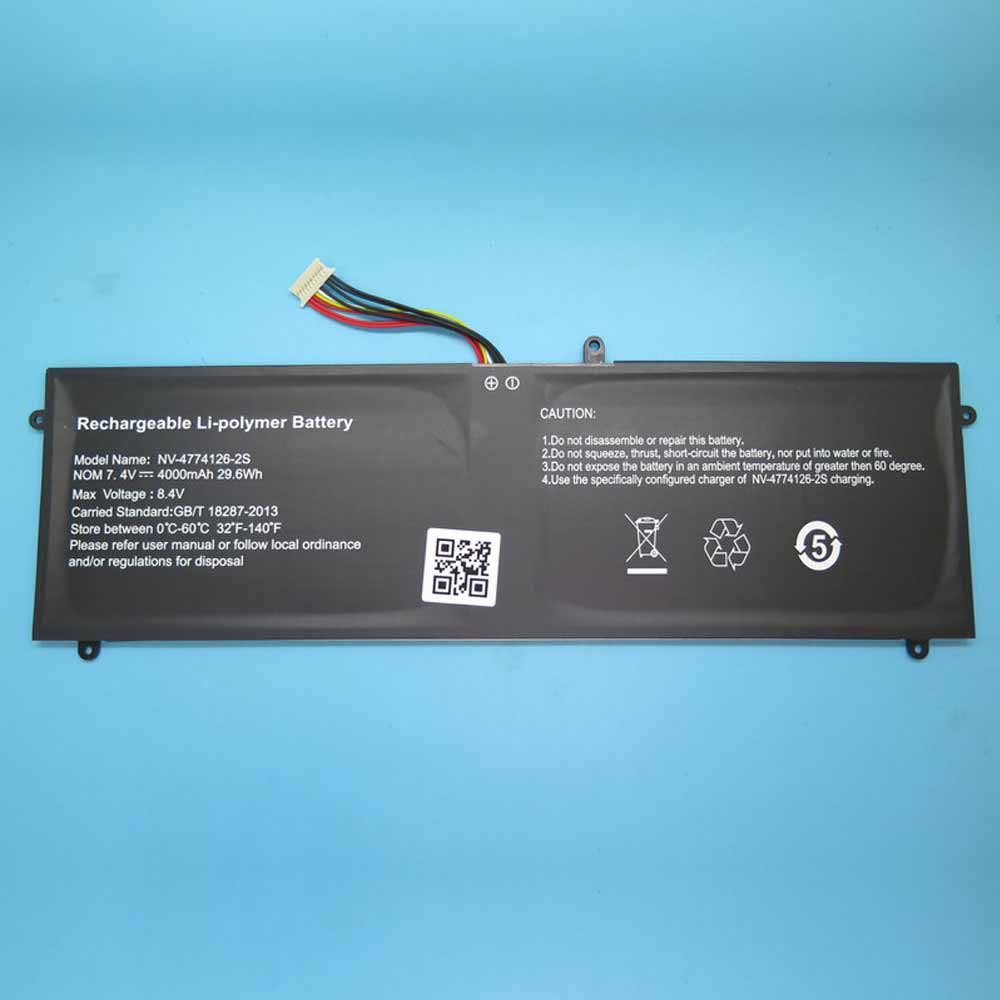 Product SpecificationsBrand: IMUZ Laptop BatteryBattery Type: Li-ionBattery Voltage: 7.4V/8.4VBattery Capacity: 4000mAHWarranty: 30 Days Money Back, 1 Year Warranty.Over 500-800 times of charge and discharge.Compatible Part Numbers:
Compatible Models:IMUZ 1544-9701 Laptop(9 lines)As a professional manufacturer, we offer a 100% brand new Li-ion battery for IMUZ NV-4774126-2S, built with genuine Grade A cells to ensure high quality and stable performance. Certified by CE, ROHS, and MSDS, this battery delivers excellent discharge characteristics and supports over 500–800 charge cycles.It is fully compatible with original Fujitsu equipment and features multiple built-in protections including over-charge, over-current, over-voltage, and short-circuit prevention. Designed with an advanced printed circuit board (PCB), it provides reliable and safe operation.Backed by a one-year warranty, 30-day money-back guarantee, and 100% secure shopping assurance, we provide premium performance at a competitive price.To ensure optimal performance and longevity of your IMUZ NV-4774126-2S Battery, please adhere to the following guidelines:1.Storage - Store the battery NV-4774126-2S in a clean, dry, and cool environment, away from heat sources and metal objects. During storage, the battery will gradually self-discharge. It is recommended to store it at approximately 40% state of charge.2.Charging and Discharging - Unlike older battery technologies, lithium-ion batteries do not require frequent full discharge cycles. Only perform a full discharge approximately every 30 charging cycles. Avoid charging the battery beyond its specified threshold voltage.3.Regular Use - Avoid leaving the battery NV-4774126-2S idle for extended periods. It is advisable to use the battery at least once every two to three weeks. If the battery has been unused for a long time, follow the initial break-in procedure as recommended for new batteries.4.Calibration - If the battery indicator shows 76% or less during use, fully charge it, then fully discharge it, and finally recharge it completely to calibrate the battery level accuracy.5.Usage on Fixed Power - Consider removing the battery from the laptop when using a fixed power source for extended periods to reduce unnecessary charging cycles.6.Short-Circuit Prevention - Do not short-circuit the battery, as this can cause serious damage and compromise safety.By following these practices, you can help maintain the performance and extend the life of your IMUZ NV-4774126-2S Battery.
Product SpecificationsBrand: IMUZ Laptop BatteryBattery Type: Li-ionBattery Voltage: 7.4V/8.4VBattery Capacity: 4000mAHWarranty: 30 Days Money Back, 1 Year Warranty.Over 500-800 times of charge and discharge.Compatible Part Numbers:
Compatible Models:IMUZ 1544-9701 Laptop(9 lines)As a professional manufacturer, we offer a 100% brand new Li-ion battery for IMUZ NV-4774126-2S, built with genuine Grade A cells to ensure high quality and stable performance. Certified by CE, ROHS, and MSDS, this battery delivers excellent discharge characteristics and supports over 500–800 charge cycles.It is fully compatible with original Fujitsu equipment and features multiple built-in protections including over-charge, over-current, over-voltage, and short-circuit prevention. Designed with an advanced printed circuit board (PCB), it provides reliable and safe operation.Backed by a one-year warranty, 30-day money-back guarantee, and 100% secure shopping assurance, we provide premium performance at a competitive price.To ensure optimal performance and longevity of your IMUZ NV-4774126-2S Battery, please adhere to the following guidelines:1.Storage - Store the battery NV-4774126-2S in a clean, dry, and cool environment, away from heat sources and metal objects. During storage, the battery will gradually self-discharge. It is recommended to store it at approximately 40% state of charge.2.Charging and Discharging - Unlike older battery technologies, lithium-ion batteries do not require frequent full discharge cycles. Only perform a full discharge approximately every 30 charging cycles. Avoid charging the battery beyond its specified threshold voltage.3.Regular Use - Avoid leaving the battery NV-4774126-2S idle for extended periods. It is advisable to use the battery at least once every two to three weeks. If the battery has been unused for a long time, follow the initial break-in procedure as recommended for new batteries.4.Calibration - If the battery indicator shows 76% or less during use, fully charge it, then fully discharge it, and finally recharge it completely to calibrate the battery level accuracy.5.Usage on Fixed Power - Consider removing the battery from the laptop when using a fixed power source for extended periods to reduce unnecessary charging cycles.6.Short-Circuit Prevention - Do not short-circuit the battery, as this can cause serious damage and compromise safety.By following these practices, you can help maintain the performance and extend the life of your IMUZ NV-4774126-2S Battery.
PR
-
2000mAh 44Wh 109A0015 Replacement Battery for Gtech ATF300 6ICR19/66 Vacuum Cleaner
Our brand-new Vacuum Cleaner Battery compatible with Gtech 109A0015 is engineered to deliver long-lasting and stable performance. It is designed to meet rigorous standards, ensuring full compatibility with devices such as the Gtech ATF300 6ICR19/66 Vacuum Cleaner. This battery comes with a one-year warranty and has passed essential safety certifications including CE, RoHS, and ISO9001. Choose our Gtech 109A0015 battery for a power solution that combines quality, safety, and convenience. Invest in authentic performance and keep your Gtech ATF300 6ICR19/66 Vacuum Cleaner running like new.
2000mAh 44Wh 109A0015 Replacement Battery for Gtech ATF300 6ICR19/66 Vacuum Cleaner
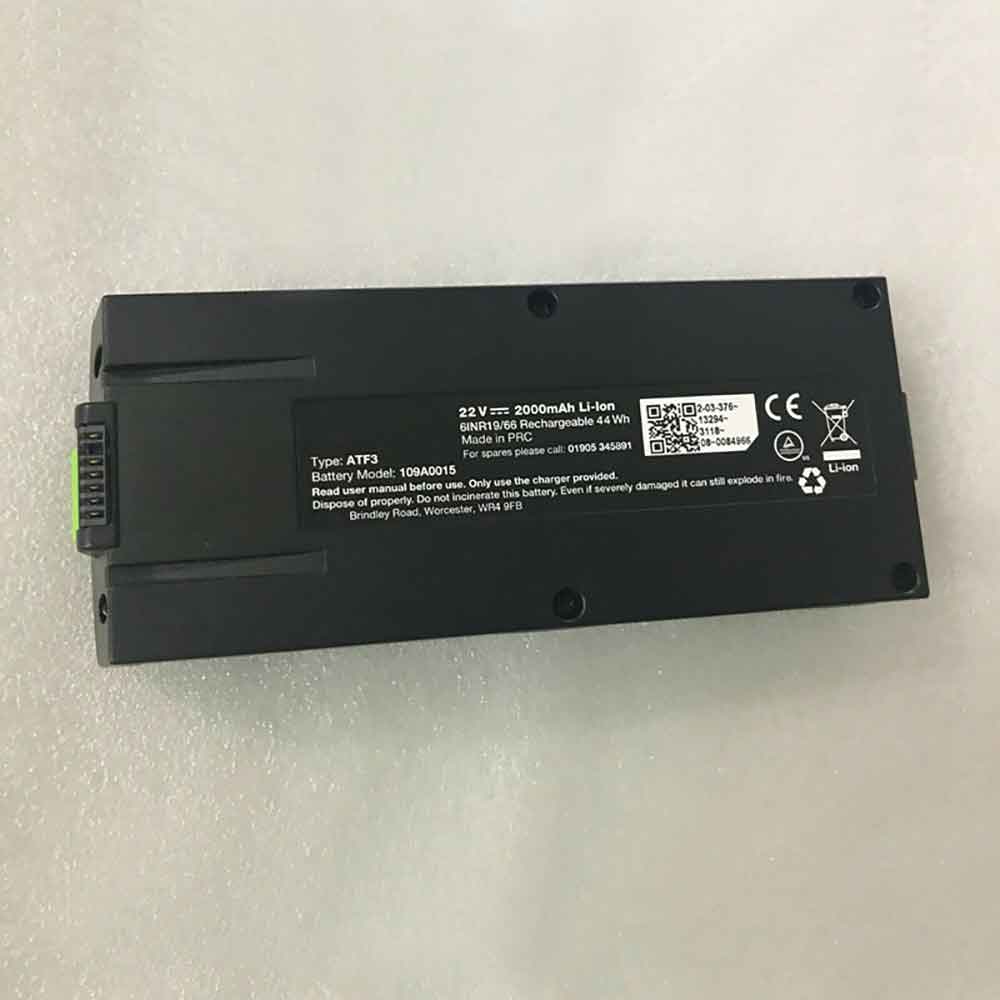 Product SpecificationsBrand: Gtech Vacuum Cleaner BatteryBattery Type: Li-ionBattery Voltage: 22VBattery Capacity: 2000mAh 44WhWarranty: 30 Days Money Back, 1 Year Warranty.Over 500-800 times of charge and discharge.Compatible Part Numbers:
Compatible Models:Gtech ATF300 6ICR19/66 Vacuum CleanerAs a professional manufacturer, we offer a 100% brand new Li-ion battery for Gtech 109A0015, built with genuine Grade A cells to ensure high quality and stable performance. Certified by CE, ROHS, and MSDS, this battery delivers excellent discharge characteristics and supports over 500–800 charge cycles.It is fully compatible with original Fujitsu equipment and features multiple built-in protections including over-charge, over-current, over-voltage, and short-circuit prevention. Designed with an advanced printed circuit board (PCB), it provides reliable and safe operation.Backed by a one-year warranty, 30-day money-back guarantee, and 100% secure shopping assurance, we provide premium performance at a competitive price.To ensure optimal performance and longevity of your Gtech 109A0015 Battery, please adhere to the following guidelines:1.Storage - Store the battery 109A0015 in a clean, dry, and cool environment, away from heat sources and metal objects. During storage, the battery will gradually self-discharge. It is recommended to store it at approximately 40% state of charge.2.Charging and Discharging - Unlike older battery technologies, lithium-ion batteries do not require frequent full discharge cycles. Only perform a full discharge approximately every 30 charging cycles. Avoid charging the battery beyond its specified threshold voltage.3.Regular Use - Avoid leaving the battery 109A0015 idle for extended periods. It is advisable to use the battery at least once every two to three weeks. If the battery has been unused for a long time, follow the initial break-in procedure as recommended for new batteries.4.Calibration - If the battery indicator shows 76% or less during use, fully charge it, then fully discharge it, and finally recharge it completely to calibrate the battery level accuracy.5.Usage on Fixed Power - Consider removing the battery from the laptop when using a fixed power source for extended periods to reduce unnecessary charging cycles.6.Short-Circuit Prevention - Do not short-circuit the battery, as this can cause serious damage and compromise safety.By following these practices, you can help maintain the performance and extend the life of your Gtech 109A0015 Battery.
Product SpecificationsBrand: Gtech Vacuum Cleaner BatteryBattery Type: Li-ionBattery Voltage: 22VBattery Capacity: 2000mAh 44WhWarranty: 30 Days Money Back, 1 Year Warranty.Over 500-800 times of charge and discharge.Compatible Part Numbers:
Compatible Models:Gtech ATF300 6ICR19/66 Vacuum CleanerAs a professional manufacturer, we offer a 100% brand new Li-ion battery for Gtech 109A0015, built with genuine Grade A cells to ensure high quality and stable performance. Certified by CE, ROHS, and MSDS, this battery delivers excellent discharge characteristics and supports over 500–800 charge cycles.It is fully compatible with original Fujitsu equipment and features multiple built-in protections including over-charge, over-current, over-voltage, and short-circuit prevention. Designed with an advanced printed circuit board (PCB), it provides reliable and safe operation.Backed by a one-year warranty, 30-day money-back guarantee, and 100% secure shopping assurance, we provide premium performance at a competitive price.To ensure optimal performance and longevity of your Gtech 109A0015 Battery, please adhere to the following guidelines:1.Storage - Store the battery 109A0015 in a clean, dry, and cool environment, away from heat sources and metal objects. During storage, the battery will gradually self-discharge. It is recommended to store it at approximately 40% state of charge.2.Charging and Discharging - Unlike older battery technologies, lithium-ion batteries do not require frequent full discharge cycles. Only perform a full discharge approximately every 30 charging cycles. Avoid charging the battery beyond its specified threshold voltage.3.Regular Use - Avoid leaving the battery 109A0015 idle for extended periods. It is advisable to use the battery at least once every two to three weeks. If the battery has been unused for a long time, follow the initial break-in procedure as recommended for new batteries.4.Calibration - If the battery indicator shows 76% or less during use, fully charge it, then fully discharge it, and finally recharge it completely to calibrate the battery level accuracy.5.Usage on Fixed Power - Consider removing the battery from the laptop when using a fixed power source for extended periods to reduce unnecessary charging cycles.6.Short-Circuit Prevention - Do not short-circuit the battery, as this can cause serious damage and compromise safety.By following these practices, you can help maintain the performance and extend the life of your Gtech 109A0015 Battery.
-
3740mAh A31-M15 Replacement Battery for Medion Akoya E6245 E6246 E6247 E6248
Our brand-new Laptop Battery compatible with Medion A31-M15 is engineered to deliver long-lasting and stable performance. It is designed to meet rigorous standards, ensuring full compatibility with devices such as the Medion Akoya E6245 E6246 E6247 E6248. This battery comes with a one-year warranty and has passed essential safety certifications including CE, RoHS, and ISO9001. Choose our Medion A31-M15 battery for a power solution that combines quality, safety, and convenience. Invest in authentic performance and keep your Medion Akoya E6245 E6246 E6247 E6248 running like new.
3740mAh A31-M15 Replacement Battery for Medion Akoya E6245 E6246 E6247 E6248
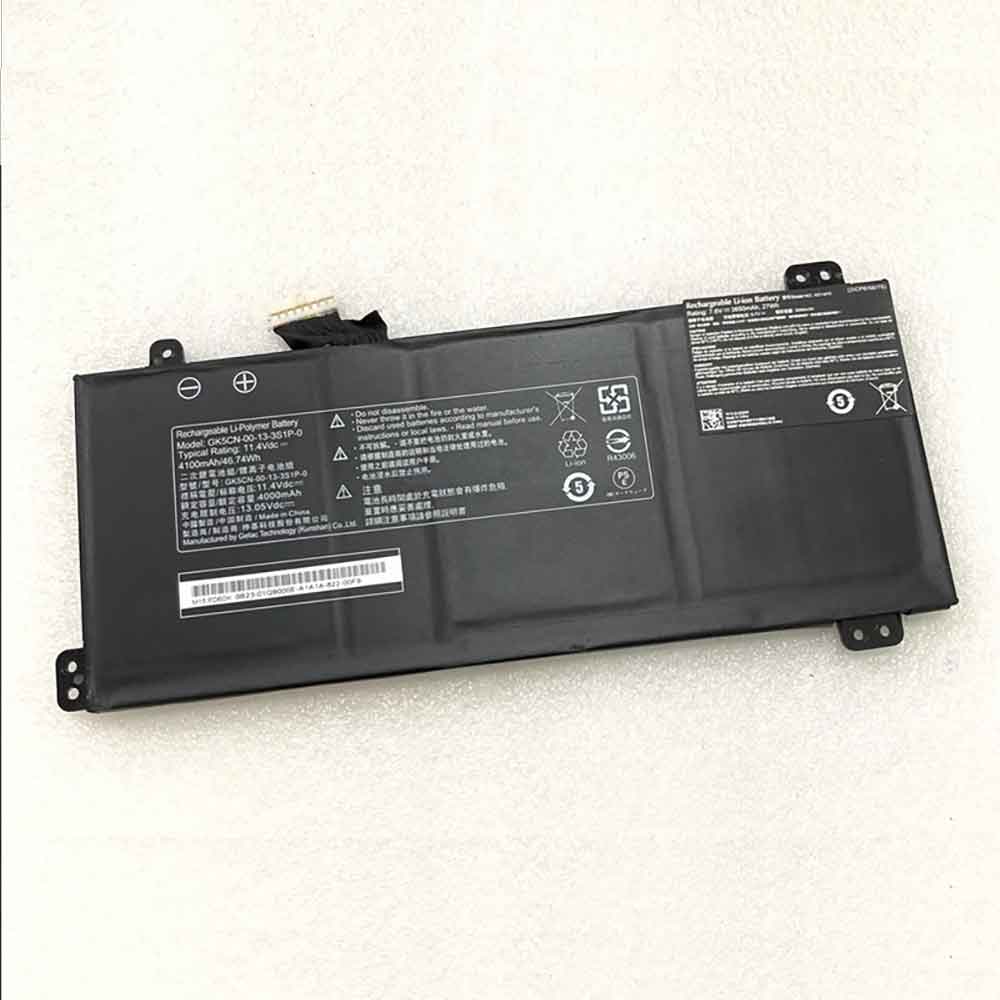 Product SpecificationsBrand: Medion Laptop BatteryBattery Type: Li-ionBattery Voltage: 11.4VBattery Capacity: 3740mAhWarranty: 30 Days Money Back, 1 Year Warranty.Over 500-800 times of charge and discharge.Compatible Part Numbers:
Compatible Models:Medion Akoya E6245(MD 61262 MSN 30025870)Medion Akoya E6247Medion Akoya E6245(MD 61279 MSN 30025879)Medion Akoya E6247(MSN 30028049)Medion Akoya E6245(MSN 30026994)Medion Akoya E6248(MD 61766 MSN 30028355)Medion Akoya E6246Medion Akoya E6245(MD 61126 MSN 30025295)Medion Akoya E6246(MD 63200 MSN 30025991)Medion Akoya E6245(MD 61275 MSN 30025871)Medion Akoya E6247(MD 61651 MSN 30027519)Medion Akoya E6245(MD 61418 MSN 30026374)Medion Akoya E6248Medion Akoya E6245(MSN 30027050)Medion Akoya E6245Medion Akoya E6246(MD 63200 MSN 30027106)As a professional manufacturer, we offer a 100% brand new Li-ion battery for Medion A31-M15, built with genuine Grade A cells to ensure high quality and stable performance. Certified by CE, ROHS, and MSDS, this battery delivers excellent discharge characteristics and supports over 500–800 charge cycles.It is fully compatible with original Fujitsu equipment and features multiple built-in protections including over-charge, over-current, over-voltage, and short-circuit prevention. Designed with an advanced printed circuit board (PCB), it provides reliable and safe operation.Backed by a one-year warranty, 30-day money-back guarantee, and 100% secure shopping assurance, we provide premium performance at a competitive price.To ensure optimal performance and longevity of your Medion A31-M15 Battery, please adhere to the following guidelines:1.Storage - Store the battery A31-M15 in a clean, dry, and cool environment, away from heat sources and metal objects. During storage, the battery will gradually self-discharge. It is recommended to store it at approximately 40% state of charge.2.Charging and Discharging - Unlike older battery technologies, lithium-ion batteries do not require frequent full discharge cycles. Only perform a full discharge approximately every 30 charging cycles. Avoid charging the battery beyond its specified threshold voltage.3.Regular Use - Avoid leaving the battery A31-M15 idle for extended periods. It is advisable to use the battery at least once every two to three weeks. If the battery has been unused for a long time, follow the initial break-in procedure as recommended for new batteries.4.Calibration - If the battery indicator shows 76% or less during use, fully charge it, then fully discharge it, and finally recharge it completely to calibrate the battery level accuracy.5.Usage on Fixed Power - Consider removing the battery from the laptop when using a fixed power source for extended periods to reduce unnecessary charging cycles.6.Short-Circuit Prevention - Do not short-circuit the battery, as this can cause serious damage and compromise safety.By following these practices, you can help maintain the performance and extend the life of your Medion A31-M15 Battery.
Product SpecificationsBrand: Medion Laptop BatteryBattery Type: Li-ionBattery Voltage: 11.4VBattery Capacity: 3740mAhWarranty: 30 Days Money Back, 1 Year Warranty.Over 500-800 times of charge and discharge.Compatible Part Numbers:
Compatible Models:Medion Akoya E6245(MD 61262 MSN 30025870)Medion Akoya E6247Medion Akoya E6245(MD 61279 MSN 30025879)Medion Akoya E6247(MSN 30028049)Medion Akoya E6245(MSN 30026994)Medion Akoya E6248(MD 61766 MSN 30028355)Medion Akoya E6246Medion Akoya E6245(MD 61126 MSN 30025295)Medion Akoya E6246(MD 63200 MSN 30025991)Medion Akoya E6245(MD 61275 MSN 30025871)Medion Akoya E6247(MD 61651 MSN 30027519)Medion Akoya E6245(MD 61418 MSN 30026374)Medion Akoya E6248Medion Akoya E6245(MSN 30027050)Medion Akoya E6245Medion Akoya E6246(MD 63200 MSN 30027106)As a professional manufacturer, we offer a 100% brand new Li-ion battery for Medion A31-M15, built with genuine Grade A cells to ensure high quality and stable performance. Certified by CE, ROHS, and MSDS, this battery delivers excellent discharge characteristics and supports over 500–800 charge cycles.It is fully compatible with original Fujitsu equipment and features multiple built-in protections including over-charge, over-current, over-voltage, and short-circuit prevention. Designed with an advanced printed circuit board (PCB), it provides reliable and safe operation.Backed by a one-year warranty, 30-day money-back guarantee, and 100% secure shopping assurance, we provide premium performance at a competitive price.To ensure optimal performance and longevity of your Medion A31-M15 Battery, please adhere to the following guidelines:1.Storage - Store the battery A31-M15 in a clean, dry, and cool environment, away from heat sources and metal objects. During storage, the battery will gradually self-discharge. It is recommended to store it at approximately 40% state of charge.2.Charging and Discharging - Unlike older battery technologies, lithium-ion batteries do not require frequent full discharge cycles. Only perform a full discharge approximately every 30 charging cycles. Avoid charging the battery beyond its specified threshold voltage.3.Regular Use - Avoid leaving the battery A31-M15 idle for extended periods. It is advisable to use the battery at least once every two to three weeks. If the battery has been unused for a long time, follow the initial break-in procedure as recommended for new batteries.4.Calibration - If the battery indicator shows 76% or less during use, fully charge it, then fully discharge it, and finally recharge it completely to calibrate the battery level accuracy.5.Usage on Fixed Power - Consider removing the battery from the laptop when using a fixed power source for extended periods to reduce unnecessary charging cycles.6.Short-Circuit Prevention - Do not short-circuit the battery, as this can cause serious damage and compromise safety.By following these practices, you can help maintain the performance and extend the life of your Medion A31-M15 Battery.
-
5050mAh VK4770B1PL Replacement Battery for Autel MaxiSys MS906BT MS906TS MS906S
Our brand-new Consumer Electronics Battery compatible with Autel VK4770B1PL is engineered to deliver long-lasting and stable performance. It is designed to meet rigorous standards, ensuring full compatibility with devices such as the Autel MaxiSys MS906BT MS906TS MS906S. This battery comes with a one-year warranty and has passed essential safety certifications including CE, RoHS, and ISO9001. Choose our Autel VK4770B1PL battery for a power solution that combines quality, safety, and convenience. Invest in authentic performance and keep your Autel MaxiSys MS906BT MS906TS MS906S running like new.
5050mAh VK4770B1PL Replacement Battery for Autel MaxiSys MS906BT MS906TS MS906S
 Product SpecificationsBrand: Autel Consumer Electronics BatteryBattery Type: Li-ionBattery Voltage: 3.7VBattery Capacity: 5050mAhWarranty: 30 Days Money Back, 1 Year Warranty.Over 500-800 times of charge and discharge.Compatible Part Numbers:
Compatible Models:Autel MaxiSys MS906BT MS906TS MS906SAs a professional manufacturer, we offer a 100% brand new Li-ion battery for Autel VK4770B1PL, built with genuine Grade A cells to ensure high quality and stable performance. Certified by CE, ROHS, and MSDS, this battery delivers excellent discharge characteristics and supports over 500–800 charge cycles.It is fully compatible with original Fujitsu equipment and features multiple built-in protections including over-charge, over-current, over-voltage, and short-circuit prevention. Designed with an advanced printed circuit board (PCB), it provides reliable and safe operation.Backed by a one-year warranty, 30-day money-back guarantee, and 100% secure shopping assurance, we provide premium performance at a competitive price.To ensure optimal performance and longevity of your Autel VK4770B1PL Battery, please adhere to the following guidelines:1.Storage - Store the battery VK4770B1PL in a clean, dry, and cool environment, away from heat sources and metal objects. During storage, the battery will gradually self-discharge. It is recommended to store it at approximately 40% state of charge.2.Charging and Discharging - Unlike older battery technologies, lithium-ion batteries do not require frequent full discharge cycles. Only perform a full discharge approximately every 30 charging cycles. Avoid charging the battery beyond its specified threshold voltage.3.Regular Use - Avoid leaving the battery VK4770B1PL idle for extended periods. It is advisable to use the battery at least once every two to three weeks. If the battery has been unused for a long time, follow the initial break-in procedure as recommended for new batteries.4.Calibration - If the battery indicator shows 76% or less during use, fully charge it, then fully discharge it, and finally recharge it completely to calibrate the battery level accuracy.5.Usage on Fixed Power - Consider removing the battery from the laptop when using a fixed power source for extended periods to reduce unnecessary charging cycles.6.Short-Circuit Prevention - Do not short-circuit the battery, as this can cause serious damage and compromise safety.By following these practices, you can help maintain the performance and extend the life of your Autel VK4770B1PL Battery.
Product SpecificationsBrand: Autel Consumer Electronics BatteryBattery Type: Li-ionBattery Voltage: 3.7VBattery Capacity: 5050mAhWarranty: 30 Days Money Back, 1 Year Warranty.Over 500-800 times of charge and discharge.Compatible Part Numbers:
Compatible Models:Autel MaxiSys MS906BT MS906TS MS906SAs a professional manufacturer, we offer a 100% brand new Li-ion battery for Autel VK4770B1PL, built with genuine Grade A cells to ensure high quality and stable performance. Certified by CE, ROHS, and MSDS, this battery delivers excellent discharge characteristics and supports over 500–800 charge cycles.It is fully compatible with original Fujitsu equipment and features multiple built-in protections including over-charge, over-current, over-voltage, and short-circuit prevention. Designed with an advanced printed circuit board (PCB), it provides reliable and safe operation.Backed by a one-year warranty, 30-day money-back guarantee, and 100% secure shopping assurance, we provide premium performance at a competitive price.To ensure optimal performance and longevity of your Autel VK4770B1PL Battery, please adhere to the following guidelines:1.Storage - Store the battery VK4770B1PL in a clean, dry, and cool environment, away from heat sources and metal objects. During storage, the battery will gradually self-discharge. It is recommended to store it at approximately 40% state of charge.2.Charging and Discharging - Unlike older battery technologies, lithium-ion batteries do not require frequent full discharge cycles. Only perform a full discharge approximately every 30 charging cycles. Avoid charging the battery beyond its specified threshold voltage.3.Regular Use - Avoid leaving the battery VK4770B1PL idle for extended periods. It is advisable to use the battery at least once every two to three weeks. If the battery has been unused for a long time, follow the initial break-in procedure as recommended for new batteries.4.Calibration - If the battery indicator shows 76% or less during use, fully charge it, then fully discharge it, and finally recharge it completely to calibrate the battery level accuracy.5.Usage on Fixed Power - Consider removing the battery from the laptop when using a fixed power source for extended periods to reduce unnecessary charging cycles.6.Short-Circuit Prevention - Do not short-circuit the battery, as this can cause serious damage and compromise safety.By following these practices, you can help maintain the performance and extend the life of your Autel VK4770B1PL Battery.
-
5070mAh V540BAT-4-80 Replacement Battery for Mechrevo V540BAT-4-80
Our brand-new Laptop Battery compatible with Mechrevo V540BAT-4-80 is engineered to deliver long-lasting and stable performance. It is designed to meet rigorous standards, ensuring full compatibility with devices such as the Mechrevo V540BAT-4-80. This battery comes with a one-year warranty and has passed essential safety certifications including CE, RoHS, and ISO9001. Choose our Mechrevo V540BAT-4-80 battery for a power solution that combines quality, safety, and convenience. Invest in authentic performance and keep your Mechrevo V540BAT-4-80 running like new.
5070mAh V540BAT-4-80 Replacement Battery for Mechrevo V540BAT-4-80
 Product SpecificationsBrand: Mechrevo Laptop BatteryBattery Type: Li-PolymerBattery Voltage: 15.48VBattery Capacity: 5070mAhWarranty: 30 Days Money Back, 1 Year Warranty.Over 500-800 times of charge and discharge.Compatible Part Numbers:
Compatible Models:for Mechrevo V540BAT-4-80As a professional manufacturer, we offer a 100% brand new Li-Polymer battery for Mechrevo V540BAT-4-80, built with genuine Grade A cells to ensure high quality and stable performance. Certified by CE, ROHS, and MSDS, this battery delivers excellent discharge characteristics and supports over 500–800 charge cycles.It is fully compatible with original Fujitsu equipment and features multiple built-in protections including over-charge, over-current, over-voltage, and short-circuit prevention. Designed with an advanced printed circuit board (PCB), it provides reliable and safe operation.Backed by a one-year warranty, 30-day money-back guarantee, and 100% secure shopping assurance, we provide premium performance at a competitive price.To ensure optimal performance and longevity of your Mechrevo V540BAT-4-80 Battery, please adhere to the following guidelines:1.Storage - Store the battery V540BAT-4-80 in a clean, dry, and cool environment, away from heat sources and metal objects. During storage, the battery will gradually self-discharge. It is recommended to store it at approximately 40% state of charge.2.Charging and Discharging - Unlike older battery technologies, lithium-ion batteries do not require frequent full discharge cycles. Only perform a full discharge approximately every 30 charging cycles. Avoid charging the battery beyond its specified threshold voltage.3.Regular Use - Avoid leaving the battery V540BAT-4-80 idle for extended periods. It is advisable to use the battery at least once every two to three weeks. If the battery has been unused for a long time, follow the initial break-in procedure as recommended for new batteries.4.Calibration - If the battery indicator shows 76% or less during use, fully charge it, then fully discharge it, and finally recharge it completely to calibrate the battery level accuracy.5.Usage on Fixed Power - Consider removing the battery from the laptop when using a fixed power source for extended periods to reduce unnecessary charging cycles.6.Short-Circuit Prevention - Do not short-circuit the battery, as this can cause serious damage and compromise safety.By following these practices, you can help maintain the performance and extend the life of your Mechrevo V540BAT-4-80 Battery.
Product SpecificationsBrand: Mechrevo Laptop BatteryBattery Type: Li-PolymerBattery Voltage: 15.48VBattery Capacity: 5070mAhWarranty: 30 Days Money Back, 1 Year Warranty.Over 500-800 times of charge and discharge.Compatible Part Numbers:
Compatible Models:for Mechrevo V540BAT-4-80As a professional manufacturer, we offer a 100% brand new Li-Polymer battery for Mechrevo V540BAT-4-80, built with genuine Grade A cells to ensure high quality and stable performance. Certified by CE, ROHS, and MSDS, this battery delivers excellent discharge characteristics and supports over 500–800 charge cycles.It is fully compatible with original Fujitsu equipment and features multiple built-in protections including over-charge, over-current, over-voltage, and short-circuit prevention. Designed with an advanced printed circuit board (PCB), it provides reliable and safe operation.Backed by a one-year warranty, 30-day money-back guarantee, and 100% secure shopping assurance, we provide premium performance at a competitive price.To ensure optimal performance and longevity of your Mechrevo V540BAT-4-80 Battery, please adhere to the following guidelines:1.Storage - Store the battery V540BAT-4-80 in a clean, dry, and cool environment, away from heat sources and metal objects. During storage, the battery will gradually self-discharge. It is recommended to store it at approximately 40% state of charge.2.Charging and Discharging - Unlike older battery technologies, lithium-ion batteries do not require frequent full discharge cycles. Only perform a full discharge approximately every 30 charging cycles. Avoid charging the battery beyond its specified threshold voltage.3.Regular Use - Avoid leaving the battery V540BAT-4-80 idle for extended periods. It is advisable to use the battery at least once every two to three weeks. If the battery has been unused for a long time, follow the initial break-in procedure as recommended for new batteries.4.Calibration - If the battery indicator shows 76% or less during use, fully charge it, then fully discharge it, and finally recharge it completely to calibrate the battery level accuracy.5.Usage on Fixed Power - Consider removing the battery from the laptop when using a fixed power source for extended periods to reduce unnecessary charging cycles.6.Short-Circuit Prevention - Do not short-circuit the battery, as this can cause serious damage and compromise safety.By following these practices, you can help maintain the performance and extend the life of your Mechrevo V540BAT-4-80 Battery.
最新記事
(09/04)
(09/04)
(09/04)
(09/04)
(09/03)